From WeatherKit to 3D City Scenes
Every background is built from three signals: your location, the current WeatherKit conditions, and the local time of day.
How the background is chosen
The app evaluates location, time, and weather to decide the exact scene you see.
Match your location
We use your GPS position to select the closest supported city and its landmark model.
Set time-of-day lighting
Local time plus sunrise and sunset decide daylight, golden hour, or night lighting.
Apply live weather
WeatherKit conditions select the scene type, sky, and effects like rain, snow, or fog.
Signals that drive the scene
These inputs shape the background so the visuals stay true to your current forecast.
Location matching
Your coordinates pick the nearest supported city so the skyline and landmarks fit the place.
Time-of-day lighting
Sunrise and sunset control sky colors, shadows, and the overall mood of the scene.
Temperature
Below 0°C we render snow and ice, while warmer readings keep streets and rooftops clear.
Seasonal tone
Seasonal context shifts the palette so winter, autumn, and summer feel distinct.
Widgets that keep you in sync
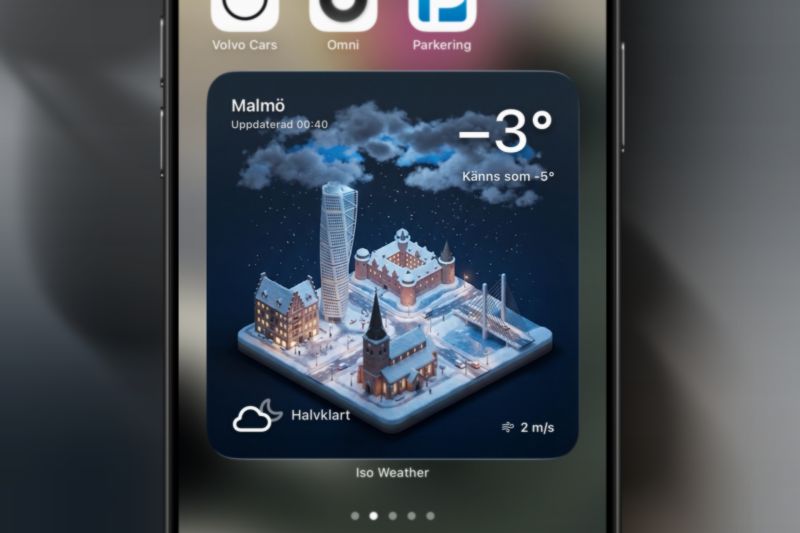
iOS widgets keep the AI weather app experience on your Home Screen with the latest conditions.
Ready to see your forecast in 3D?
Download IsoWeather and experience a new kind of AI weather app.
Download on App Store