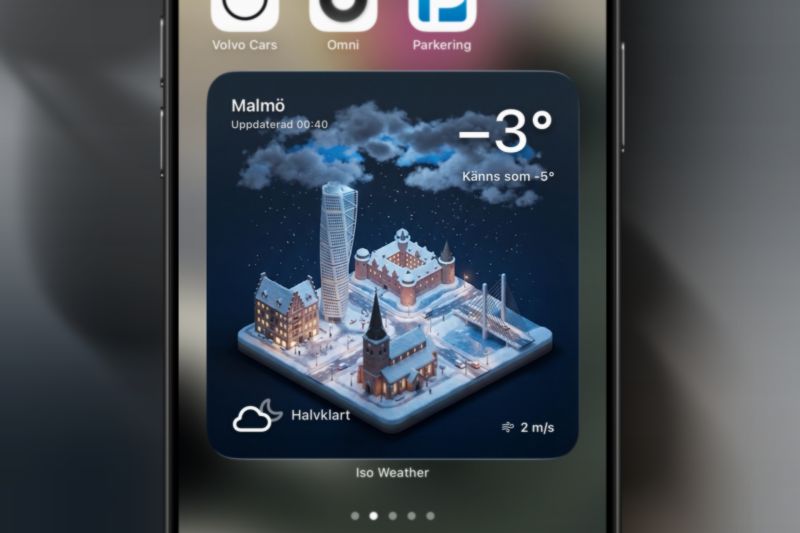
What the IsoWeather widget shows
The Home Screen widget brings the selected city's temperature and current condition into a visual IsoWeather scene. You can scan the forecast without opening the app, then open IsoWeather when you need favorites, the multi-day outlook, or more detail.
The screenshot above is an actual IsoWeather widget, not a generic weather mockup. Its layout is designed around one clear city and the conditions that matter at a glance.
Choose a Home Screen widget size
IsoWeather supports all three standard Home Screen sizes:
- Small: a compact temperature and condition check beside your everyday apps.
- Medium: more room for the city scene while staying easy to place in a daily layout.
- Large: the most visual format when weather should be a main part of the Home Screen.
Best starting point
Choose Medium first. It balances readable conditions, visual context, and Home Screen space.
Weather on the iPhone Lock Screen
IsoWeather also supports inline, circular, and rectangular Lock Screen widgets. You can choose a general weather view or focused complications for wind, sky condition, and precipitation.
Use inline for the smallest text summary, circular for a compact complication, or rectangular when you want more room for a weather value. Lock Screen widgets are intentionally denser than the cinematic Home Screen formats.
WeatherKit data with an IsoWeather scene
IsoWeather uses Apple WeatherKit for current conditions and forecast data. The app pairs that data with an AI-generated city scene, so the widget has the same visual identity as the full app rather than looking like a separate utility.
Widgets refresh through the iOS widget timeline. iOS controls the exact refresh timing to balance freshness and battery use, so a widget is not a continuously running live display.
How to add the IsoWeather widget
- Download IsoWeather and open the app once so it can load your weather location.
- Press and hold the Home Screen, choose to add a widget, and search for IsoWeather.
- Select Small, Medium, or Large and place the widget where you want it.
- For the Lock Screen, enter edit mode, select the widget area, and choose an IsoWeather format.
- Open IsoWeather to change the selected location or manage favorite cities.
What to expect from an iPhone weather widget
A widget is best for a fast check, not for every forecast detail. Open the app for the 3-day and 10-day views, city switching, and the full visual scene. The widget focuses on one selected location at a time so the information stays readable.
Weather updates depend on WeatherKit availability, network access, location settings, and the iOS timeline schedule. If a widget appears stale, open IsoWeather to refresh the app's current data and confirm that the selected city is available.